How to Set up Proxy in Windows 11 & 10: A Step-By-Step Guide
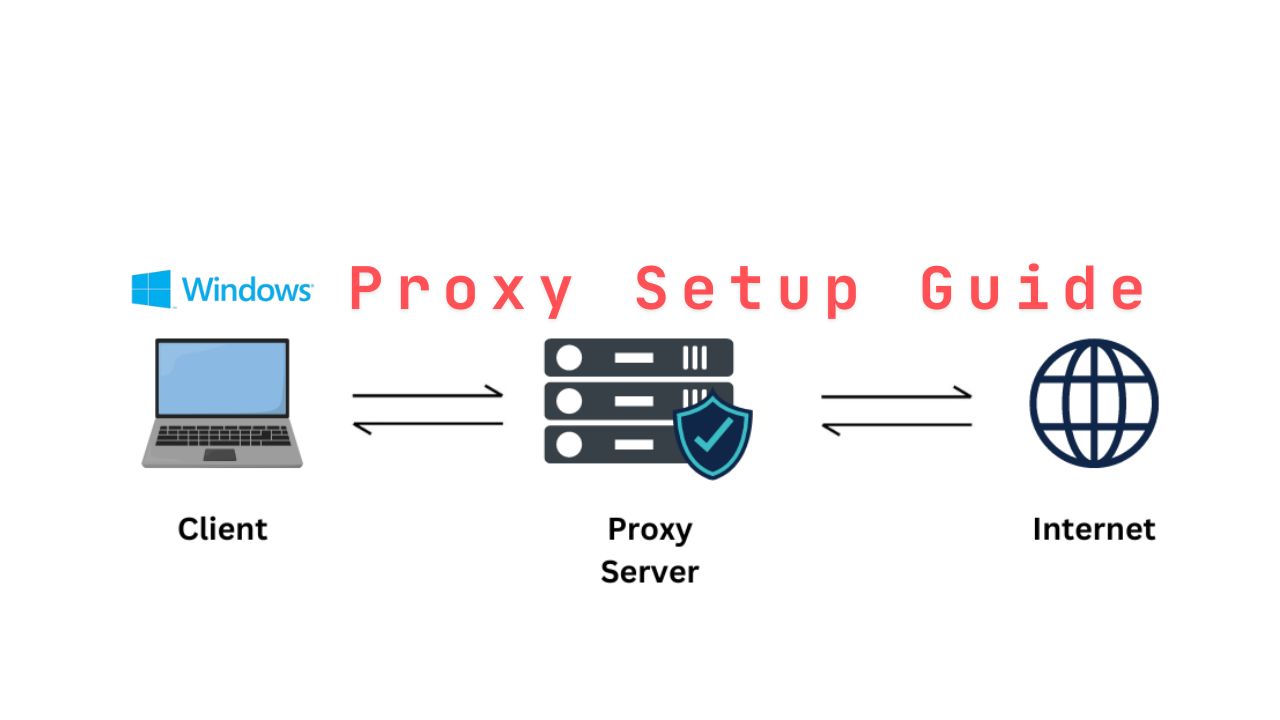
Here's how to set up a proxy in your Windows 11 and Windows 10
Proxies could be quite helpful in bringing out online privacy, unblocking region-restricted content, or bringing faster connections to some network environments. Anyway, with Windows 10 or even Windows 11, setting up a proxy server isn't an issue. We will take you through the setup process on both editions of Windows.
How to Set Up a Proxy in Windows 11
1. Open the Settings App
Press the keyboard Shortcut Windows + I to open Application Settings or Start Menu >> Settings.
Network and internet options are located on the left-hand side of the Settings menu; click on it.
2. Go to Proxy Settings
At the bottom, click Proxy from the right menu.
You will learn how to set up proxy configuration in two ways:
- Automatically detect settings: This is selected by default. It allows Windows to detect the configuration of a proxy automatically.
- Setting up proxy settings manually: When a user has to define the IP address and port number of a proxy server.
3. Automatic Proxy Configuration (Optional)
If you want to use auto-detection:
- Under Automatically detect settings, toggle the button below to On.
- Windows will automatically configure the proxy through your network settings.
4. Set Up Proxy Manually
To configure a proxy server manually:
- Scroll down to Manual proxy setup.
- Flip the proxy settings to use Manual Proxy Setup
- Under Address, enter the IP address for your proxy server.
- Under the Port field, enter the port number from your proxy service.
Optionally, if you want some websites to skip the proxy server, you can include those in the field: Do not use proxy server for addresses beginning with.
5. Click to Save Settings
Once you've filled in the proper information:
- Click Save to save the changes.
Your Windows 11 will route its traffic through the proxy that was set up.
How to Turn off the Proxy
To disable proxy settings later, simply slide the Use a proxy server switch to off, or click the box next to Automatically detect settings and select Off.
How to Set Up a Proxy in Windows 10
While the process for setting up a proxy in Windows 10 is similar to Windows 11, the UI may be a little different. Here's how to do it in Windows 10.
1. Open the Settings App
- Click on the Start Menu and select the Settings icon at the bottom, or press the Windows + I keys.
2. Go to Network settings
- Click Network & Internet under the Settings menu.
- Click on Proxy on the left-hand menu.
3. Automatic Proxy Setup
Similar to Windows 11, auto-proxy setup is also available in Windows 10.
- If you want the system to automatically handle the configuration of a proxy, under Automatically detect settings, toggle ON the switch.
4. Setting Up the Proxy Manually
For manual configuration:
- Scroll down to Manual proxy setup.
- Under Proxy server, select the checkbox Use a proxy server.
You can fill in the appropriate fields for your proxy server's IP address and port.
If there are some websites for which you want to bypass the proxy, you can add those under Exceptions.
5. Apply and Save Changes
Once you fill in the details:
- Click Save to save the changes.
Your Windows 10 system will apply the proxy settings you have inserted if they are correct.
Disabling the Proxy
To disable the proxy, it's as simple as revisiting the Proxy section in Settings and clicking the slider to turn the Use a Proxy Server to off.
Troubleshooting Proxy Issues
When things don't just set right after you've set up the proxy, here are some troubleshooting tips:
- Proxy information: Correct entry of the IP and port of the proxy is necessary; even a small mistake will deny connections to your server.
- Issues with the Internet: When it becomes slow, and some sites are not accessible, one can switch it off to ascertain whether it is the solution.
- Firewalls: Also, make sure that the firewall does not block the connections via proxy. You may need to configure your firewall to allow the traffic to pass on the proxy port.
- Proxy Authentication: Some proxies require authentication. If this is the case, make sure that you’ve entered the correct username and password, if applicable.
Conclusion
Setting up a proxy in Windows 11 and Windows 10 will not take more than a couple of minutes. It's easy. Whatever the reason—be it for privacy, taking control over the network, or bypassing region restrictions—you can set this up.
With the guide above, it simply routes your system through a proxy server. You just have to review your proxy server information and edit the settings according to your needs.
Reminder: Additional configuration settings will also be needed for advanced users who will be integrating these proxy settings with VPNs, firewalls, or even more sumptuous networking environments. But for a regular user, this should get your proxy up and running.